
Home › Fantasy Gems iOS
Fantasy Gems iOS: Easy Guide to Play on iPhone Safely (2026)
Searching for a Fantasy Gems iOS download on the App Store? You will not find one. There is no official Fantasy Gems iOS app, but iPhone users can still use Fantasy Game through its web version in Safari. This guide explains how Fantasy Gems iOS works, how to add it to your Home Screen like an app, how to log in, and which risks to check before you use real money.
Quick answer
Fantasy Gems iOS is web-only. Open the Fantasy Gems website in Safari, log in with your +92 mobile number, then tap ••• → Share → Add to Home Screen to get an app-like icon. The Android APK cannot be installed on an iPhone, so avoid any “Fantasy Gems IPA” file or profile download.
Fantasy Gems iOS: Key Details
Here is a short summary of how Fantasy Gems (also called Fantasy Game) works on Apple devices in 2026.
| Detail | Information |
|---|---|
| App name | Fantasy Gems (Fantasy Game) |
| Fantasy Gems iOS app on App Store | Not available |
| How to play on iPhone | Web version in Safari or Chrome |
| Home Screen shortcut | Yes, with Add to Home Screen |
| APK on iPhone | Not supported (APK files are for Android only) |
| iPad support | Yes, same web version in Safari |
| Login | +92 mobile number and password |
| Payment methods | JazzCash, Easypaisa, bank transfer, USDT |
| Price | Free to open |
| Licence | No verified licence |
Is There a Fantasy Gems iOS App on the App Store?
No. Searching the App Store for Fantasy Gems iOS, “Fantasy Game iPhone” or “Fantasy Gems for iPhone” will not show the real app. Apple only accepts real-money gaming apps from licensed operators, and only in regions where that kind of gaming is legal. You can read these rules in section 5.3 of Apple’s App Store Review Guidelines.
Fantasy Gems has no verified developer or licence, and online betting is not permitted in Pakistan. Because of this, there is no Fantasy Gems iOS listing, and one is unlikely to appear soon. The Android version is shared as an APK file outside Google Play for the same reason, as our Fantasy Gems download guide explains.
So the full Fantasy Gems iOS experience runs inside the browser. The web version uses the same account system as the Android app. You log in with the same +92 mobile number and password, and the same games, wallet and history open on your iPhone.
App Store apps named “Fantasy Gems,” “Gems Fantasy” or “Fantasy Game” are usually unrelated puzzle or RPG games. They are not the Fantasy Gems iOS app and cannot open your account. Never type your Fantasy Gems password inside an App Store game.
How to Use Fantasy Gems iOS in Safari (Step by Step)
Safari is the best browser for Fantasy Gems iOS because it fully supports Home Screen web apps. Follow these steps on any iPhone:
- Open Safari on your iPhone. Chrome for iOS also works.
- Open the Fantasy Gems website. Type the address yourself or use a link you already trust, not a link from an ad or a random WhatsApp group.
- Wait for the page to load fully. The Fantasy Gems iOS web version is made for portrait mode, just like the app.
- Tap Login if you already have an account, or Register to create one.
- Enter your mobile number with +92 and your password, then confirm.
- Before typing a password, check the address bar. It should show the site you meant to open, not a look-alike name.
New player? Read the Fantasy Gems register guide first, then follow the Fantasy Gems login steps.
Add Fantasy Gems iOS to Your iPhone Home Screen
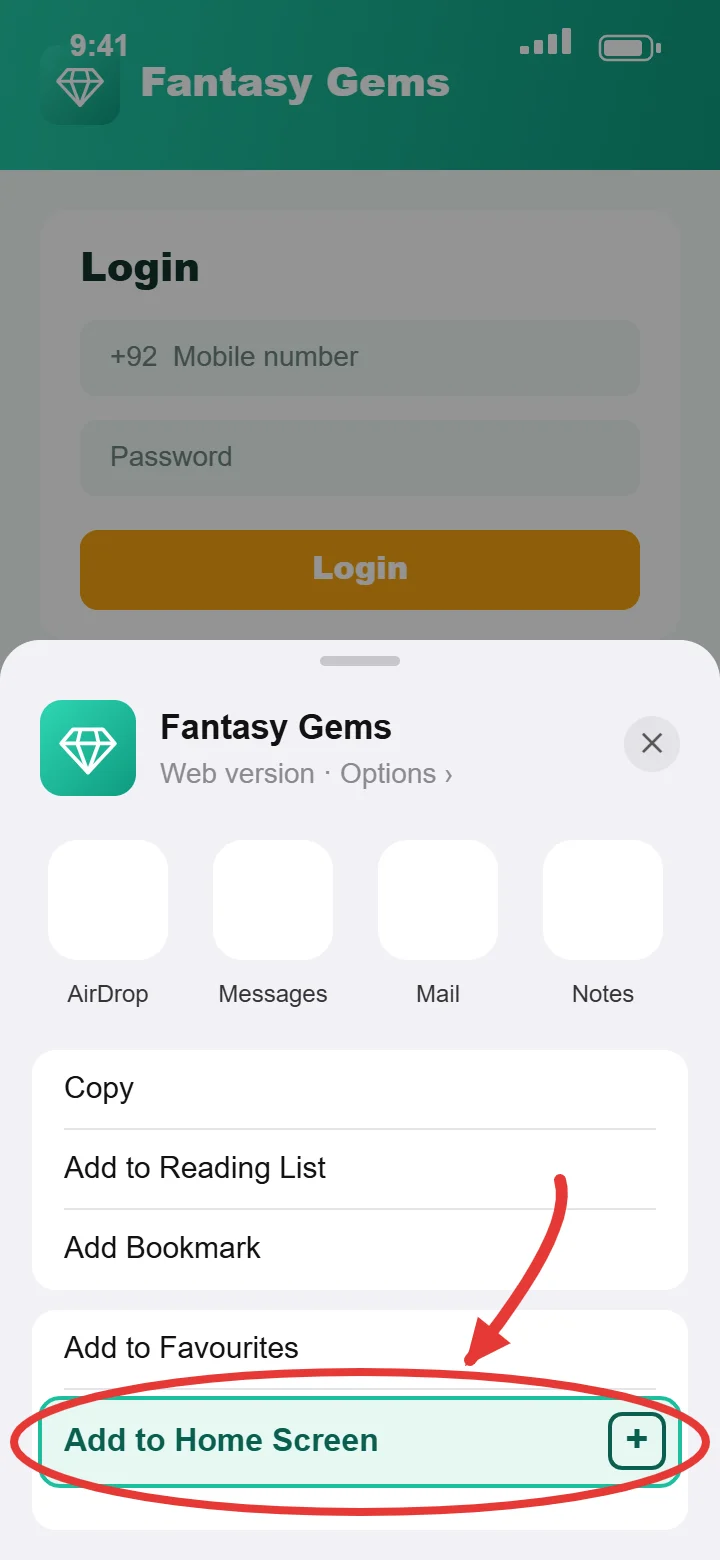
Adding the site to your Home Screen gives Fantasy Gems iOS an app-style icon, so you can open it with one tap instead of typing the address every time. It is a web shortcut, not a downloaded app, so it uses almost no storage and never needs an APK.
- Open the Fantasy Gems website in Safari.
- Tap the ••• (More) button next to the address bar. On older iOS versions, tap the Share button at the bottom of the screen instead.
- Tap Share, scroll down and choose Add to Home Screen.
- If you see Open as Web App, keep it switched on so the site opens full screen.
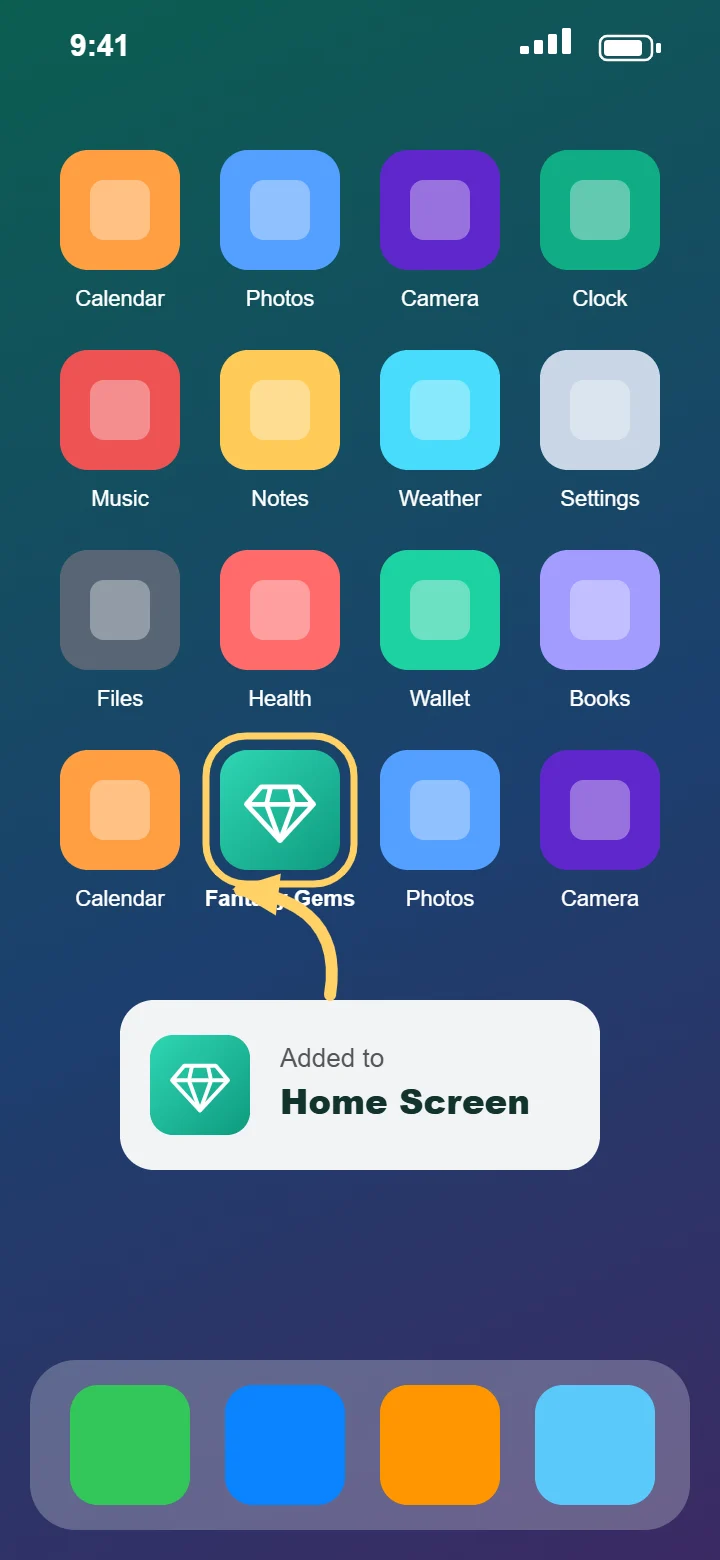
- Rename it “Fantasy Gems” if you like, then tap Add.
- Find the new icon on your Home Screen and tap it to open.
Tap the Share icon in Chrome’s address bar, then choose Add to Home Screen. This works on iOS 16.4 and later, but Safari is still the most reliable option for Fantasy Gems iOS.
What You Get on Fantasy Gems iOS
The web version is not a cut-down copy. Once you log in, Fantasy Gems iOS shows the same lobby and tools that Android users see in the APK:
- Same game lobby: colour prediction (Wingo) plus casino-style games such as Aviator, Chicken Road and fishing games. See the full Fantasy Gems games list.
- Same wallet: deposits and withdrawals with JazzCash, Easypaisa, bank transfer and USDT.
- Same account: one +92 login for iPhone, iPad, Android and PC.
- Gift codes and referrals: the invite and gift code sections, where available.
- English and Urdu: the same language options as the app.
- No storage needed: nothing is installed, so your iPhone storage stays free.
Fantasy Gems iOS Login and Register on iPhone
Account steps on Fantasy Gems iOS are the same as on Android, because both versions share one account system. If you already play on an Android phone, simply log in on your iPhone with the same details.
How to register on iPhone
- Open the web version in Safari and tap Register.
- Enter your mobile number with +92. Use a SIM registered in your own name.
- Create a strong password and confirm it.
- Enter an invitation code only if you got it from a source you trust.
- Verify with the OTP if asked, accept the terms and tap Register.
How to log in on iPhone
Tap Login, enter your +92 number and password, and tap Login again. If you forgot your password, use the reset option on the login screen. Never share an OTP with anyone who calls or messages you, even if they say they are from “Fantasy Gems support.” All common errors and fixes are in our login guide.
Fantasy Gems iOS Deposit and Withdraw
The wallet works the same way on Fantasy Gems iOS as in the Android APK. After you log in, tap Wallet at the bottom of the screen to see the Deposit and Withdraw options.
| Task | How it works on iPhone |
|---|---|
| Deposit | Wallet → Deposit → choose JazzCash, Easypaisa, bank transfer or USDT → pay → enter the TID if asked |
| Withdraw | Wallet → Withdraw → choose your linked account → enter the amount → submit |
| Payment apps | Switch between Safari and your JazzCash or Easypaisa app to finish the payment |
| Proof | Take a screenshot of every transaction ID: press the Side and Volume Up buttons together (Side and Home on older iPhones) |
Step-by-step rules, limits and problem fixes are in the Fantasy Gems deposit guide and the Fantasy Gems withdraw guide.
Why the Fantasy Gems APK Won’t Install on iPhone
APK files are built only for Android. An iPhone installs apps from the App Store, and in a few regions such as the EU, from Apple-approved alternative marketplaces, which are not available in Pakistan. That means any “Fantasy Gems iOS APK” or “Fantasy Gems IPA” download cannot work as a normal install.
Fake Fantasy Gems iOS downloads usually try to trick you into one of these:
- Installing a “configuration profile” or “VPN profile” to unlock the app.
- Downloading an IPA file shared in a WhatsApp or Telegram group.
- Paying for a “TestFlight” or “enterprise” invite to a private iPhone version.
- Entering your Apple ID password on a website to “activate” the game.
A profile can change your iPhone settings, route your internet traffic, or install apps outside the App Store. If you installed one by mistake, go to Settings → General → VPN & Device Management, tap the profile and choose Remove Profile.
Fantasy Gems iOS vs Android APK
Both versions open the same account, but they work differently on your phone:
| Feature | Fantasy Gems iOS (web) | Android APK |
|---|---|---|
| Installation | No install, just a Safari shortcut | APK file installed manually |
| Storage | Almost none | Around 50–100 MB |
| Updates | Automatic when the website updates | Download a new APK each time |
| Fake file risk | Low if you open the real site | Higher, fake APKs are common |
| Notifications | Only if the site supports web push | App notifications |
| Account and wallet | Same +92 login and wallet | Same +92 login and wallet |
Also have an Android phone? Follow the Fantasy Gems APK download steps. Want a bigger screen? Read our Fantasy Gems for PC guide for Windows laptops and Mac.
iPhone and iPad Requirements for Fantasy Gems iOS
| Requirement | Details |
|---|---|
| Device | Any iPhone or iPad that runs a recent iOS or iPadOS version |
| iOS version | iOS 16 or later recommended (16.4 or later for Chrome Home Screen shortcuts) |
| Browser | Safari (recommended) or Chrome |
| Internet | Stable Wi-Fi or 4G connection |
| Storage | No app storage needed |
| Account | A +92 mobile number and password |
On an iPad the steps are almost the same. Open the site in Safari, tap the Share button (or the ••• menu), choose Add to Home Screen, and the Fantasy Gems iOS shortcut appears on your iPad Home Screen.
How to Keep Fantasy Gems iOS Updated
You never need to update Fantasy Gems iOS by hand. Because it is a website, every change appears the next time you open the icon. Just keep two things in mind:
- If the site moves to a new address, the old Home Screen icon may stop working. Delete it, open the current site in Safari and add it again.
- Ignore messages that say “download the new Fantasy Gems iOS update.” The web version has no update file, so such messages are scams.
- Keep your iPhone itself updated in Settings → General → Software Update for the latest Safari security fixes.
Fantasy Game iOS and Fantasy Gems iPhone: Same App?
Yes. Fantasy Game iOS, Fantasy Gems iPhone, Fantasy Gems for iOS and “FantasyGems iPhone” all point to the same web version described on this page. “Fantastic game iPhone” is also a common misspelling. Whatever name you search, the safe method stays the same: open the real website in Safari and add it to your Home Screen. For a full overview of the platform, read what Fantasy Gems is.
Fantasy Gems iOS Problems and Solutions
| Problem | Likely cause | Solution |
|---|---|---|
| Page won’t load | Weak internet or a changed domain | Switch between Wi-Fi and 4G, reload, or open the current site link again |
| Login keeps failing | Wrong number format or password | Enter the number with +92 and reset your password from the login screen |
| Home Screen icon shows a blank page | The site address changed | Delete the old icon, open the current site in Safari and add it again |
| Buttons or games don’t respond | Old cache or a content blocker | Go to Settings → Apps → Safari (Settings → Safari on iOS 17 and earlier), tap Clear History and Website Data, and turn off content blockers for the site |
| Add to Home Screen is missing | Link opened inside WhatsApp or Instagram | Open the link in Safari first, then use Share → Add to Home Screen |
| Games lag or freeze | Low Power Mode or too many tabs | Close other tabs, turn off Low Power Mode and restart Safari |
How to Spot a Fake Fantasy Gems Website on iPhone
Because there is no App Store app, scammers copy the Fantasy Gems look and send iPhone users to fake login pages. A fake page can steal your password, your OTP or your JazzCash details within seconds. Check these signs every time you open the web version:
- Odd spelling in the address: extra letters, swapped words or strange endings in the website name.
- Login links in SMS or WhatsApp: real platforms do not ask you to log in through a link sent by a stranger.
- Pressure to pay fast: “deposit in 10 minutes to get double bonus” is a classic trick.
- Requests for your PIN: no website ever needs your JazzCash or Easypaisa PIN.
- A padlock is not proof: the lock icon in Safari only means the connection is encrypted, not that the site is honest.
Once you have the correct site saved to your Home Screen, always open it from that icon instead of new links. This single habit removes most phishing risk.
Set Time Limits for Fantasy Gems on iPhone
Fast games such as colour prediction can make it easy to lose track of time and money. iPhone has a built-in tool that helps you stay in control:
- Open Settings and tap Screen Time.
- Tap App Limits, then Add Limit.
- Scroll to Websites and choose the Fantasy Gems website from the list.
- Set a daily time, for example 30 minutes, and tap Add.
When the limit is reached, Safari shows a reminder screen. You can also set a Screen Time passcode so that a family member keeps control of the limit.
How to Remove Fantasy Gems from Your iPhone
Removing the web version is quick, and nothing is left behind once you clear the saved website data:
- Touch and hold the Fantasy Gems icon on your Home Screen.
- Tap Remove or Delete Bookmark, then confirm.
- Open Settings → Apps → Safari → Advanced → Website Data (Settings → Safari → Advanced on iOS 17 and earlier).
- Search for the Fantasy Gems site and swipe left to delete its data.
Before you delete anything, withdraw your remaining balance and log out, because removing the icon does not close your account.
Before You Use Fantasy Gems iOS for Real Money
Fantasy Gems has no verified developer or licence, it is not reviewed by Apple or Google, and online betting is not permitted in Pakistan. Read is Fantasy Gems real or fake and the legal status in Pakistan before you deposit anything.
- Use a strong password that you do not use for email or banking.
- Never share your OTP, password or JazzCash PIN with anyone.
- Do not trust “prediction hacks,” “VIP signals” or guaranteed-profit groups. See why every Fantasy Gems hack fails.
- Keep screenshots of every deposit and withdrawal.
- Set a spending limit and never deposit money you cannot afford to lose.
Fantasy Gems iOS FAQs
Is there a Fantasy Gems iOS app on the App Store?
No. There is no official Fantasy Gems iOS app on the App Store. iPhone users can use the web version in Safari and add it to the Home Screen.
Why is Fantasy Gems not on the App Store?
Apple only allows real-money gaming apps from licensed operators in regions where that gaming is legal. Fantasy Gems has no verified licence, so it has no App Store listing.
How do I download Fantasy Gems on iPhone?
You cannot download it as an app. Open the Fantasy Gems website in Safari, then tap ••• → Share → Add to Home Screen to get an app-like icon.
Can I install the Fantasy Gems APK on iPhone?
No. APK files only work on Android. Avoid any “iOS APK,” IPA file or profile that claims to install Fantasy Gems on an iPhone.
Can I use the same account on iPhone and Android?
Yes. Log in with the same +92 mobile number and password and you will see the same account and wallet.
Does Fantasy Gems work on iPad?
Yes. Open the website in Safari on your iPad and use Share → Add to Home Screen. The steps are the same as on iPhone.
Can I deposit with JazzCash or Easypaisa on iPhone?
Yes. The wallet on Fantasy Gems iOS offers the same methods as Android: JazzCash, Easypaisa, bank transfer and USDT.
Is Fantasy Gems iOS safe?
The web version avoids fake APK files, but the platform has no verified licence and real-money use is risky. Use a strong password and never deposit more than you can afford to lose.
Do I need to update Fantasy Gems on iPhone?
No. The web version updates automatically. If the website address changes, delete the old Home Screen icon and add the new one.