
Home › Fantasy Gems for PC
Fantasy Gems for PC: Easy Guide for Windows & Laptop (2026)
Want to play Fantasy Gems for PC on a bigger screen? There is no official Windows or Mac app, but you can still use Fantasy Game on a computer in two ways: the web version in your browser, or the Android APK inside an emulator such as BlueStacks. This Fantasy Gems for PC guide covers both methods, the system requirements, common errors and the safety checks to do first.
Quick answer
Fantasy Gems for PC has no official .exe file. The easiest way is to open the Fantasy Gems website in Chrome or Edge and log in with your +92 number. To use the Android app, install an emulator like BlueStacks and drag the Fantasy Gems APK into it. Never download a “Fantasy Gems.exe” from an unknown site.
Fantasy Gems for PC: Key Details
Here is a quick summary of how Fantasy Gems (also called Fantasy Game) works on laptops and desktop computers in 2026.
| Detail | Information |
|---|---|
| App name | Fantasy Gems (Fantasy Game) |
| Official Windows or Mac app | Not available |
| Method 1 | Web version in Chrome, Edge or Firefox |
| Method 2 | Android APK in an emulator (BlueStacks, LDPlayer or MuMu Player) |
| Supported computers | Windows 10 and 11 laptops and desktops; Mac through the browser or BlueStacks Air |
| Login | +92 mobile number and password |
| Payment methods | JazzCash, Easypaisa, bank transfer, USDT |
| Price | Free to open and install |
| Licence | No verified licence |
Is There an Official Fantasy Gems for PC App?
No. There is no official Fantasy Gems for PC download, no Microsoft Store listing and no .exe installer. Fantasy Gems is built as an Android APK plus a web version, and nothing else. Google Play Games for PC does not help either, because it only runs games that are listed on Google Play, and Fantasy Gems is not on Google Play.
Windows 11 used to run some Android apps through the Windows Subsystem for Android, but Microsoft ended support for it on March 5, 2025, as stated on Microsoft’s WSA page. So in 2026 there are only two working ways to use Fantasy Gems for PC: the browser or an Android emulator.
Websites offering a “Fantasy Gems for PC .exe,” “Fantasy Gems Windows setup” or “Fantasy Gems PC crack” are not official. These files can hide malware, password stealers or crypto miners. Use only the two methods explained below.
Method 1: Fantasy Gems for PC Web Version (Easiest)
The web version is the fastest Fantasy Gems for PC option. Nothing is installed on your computer, so it works on almost any Windows laptop, Mac, Linux PC or Chromebook within a minute.
- Open Chrome, Edge or Firefox on your laptop or desktop.
- Go to the Fantasy Gems website. Type the address yourself or use a link you already trust.
- Click Login, or Register if you are new.
- Enter your mobile number with +92 and your password.
- Press Ctrl and + or Ctrl and − to zoom until the page fits your screen. Press F11 for full screen.
- Optional: in Chrome open the ⋮ menu → Cast, save and share → Install page as app, or in Edge open ••• → Apps → Install this site as an app, to get a desktop icon.
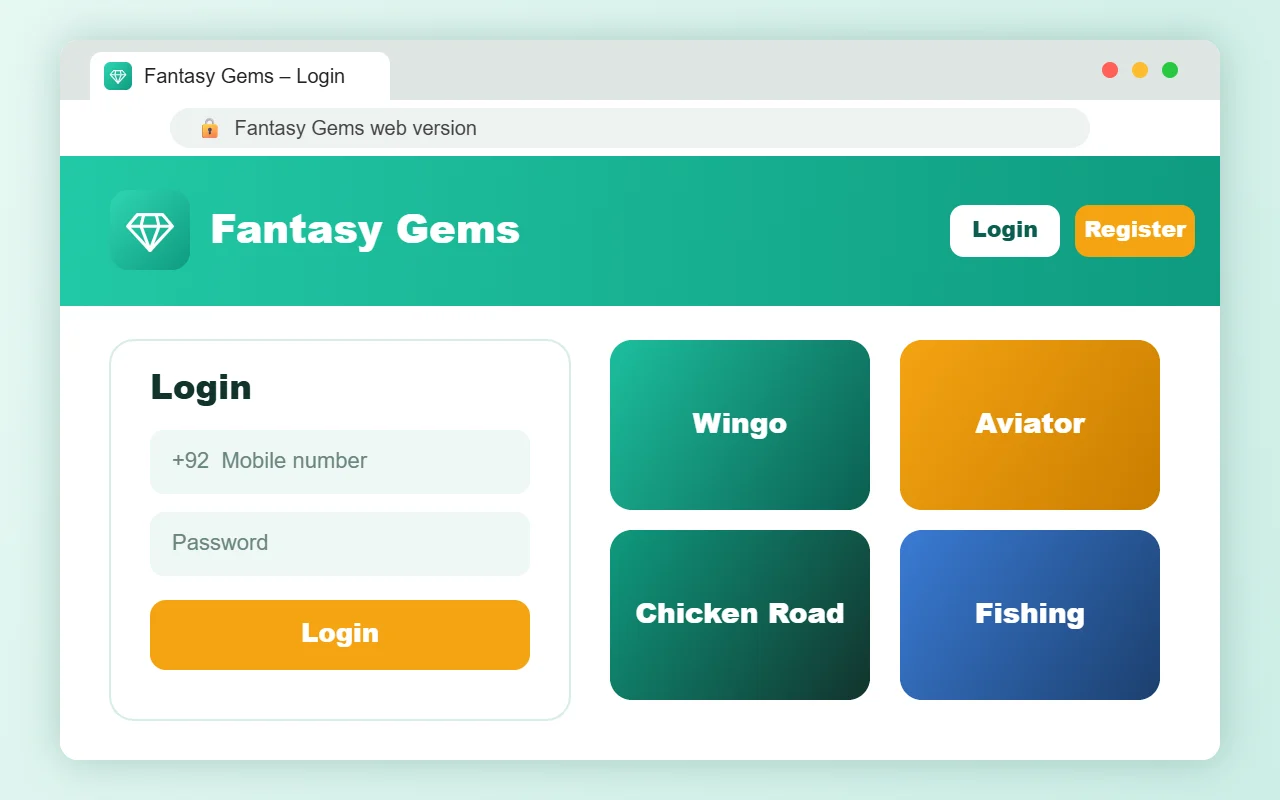
Because nothing is downloaded, the web version is the safest Fantasy Gems for PC method. There is no APK to fake and no file that can infect your computer.
Method 2: Fantasy Gems for PC with BlueStacks
An Android emulator creates a virtual Android phone inside Windows, so the Fantasy Gems APK runs on your computer just like it runs on a phone. BlueStacks is the most popular choice and is free to use.
- Download BlueStacks only from its official website, bluestacks.com, and install it.
- Open BlueStacks and wait for the Android home screen to load.
- Download the Fantasy Gems APK on your computer. Our Fantasy Gems download guide explains how to get the latest file.
- Drag the APK file onto the BlueStacks window, or click Install APK in the right-side toolbar (Ctrl + Shift + B) and choose the file.
- Wait a few seconds for the install to finish. The Fantasy Gems icon appears on the BlueStacks home screen.
- Open the app, then log in or register with your +92 number.
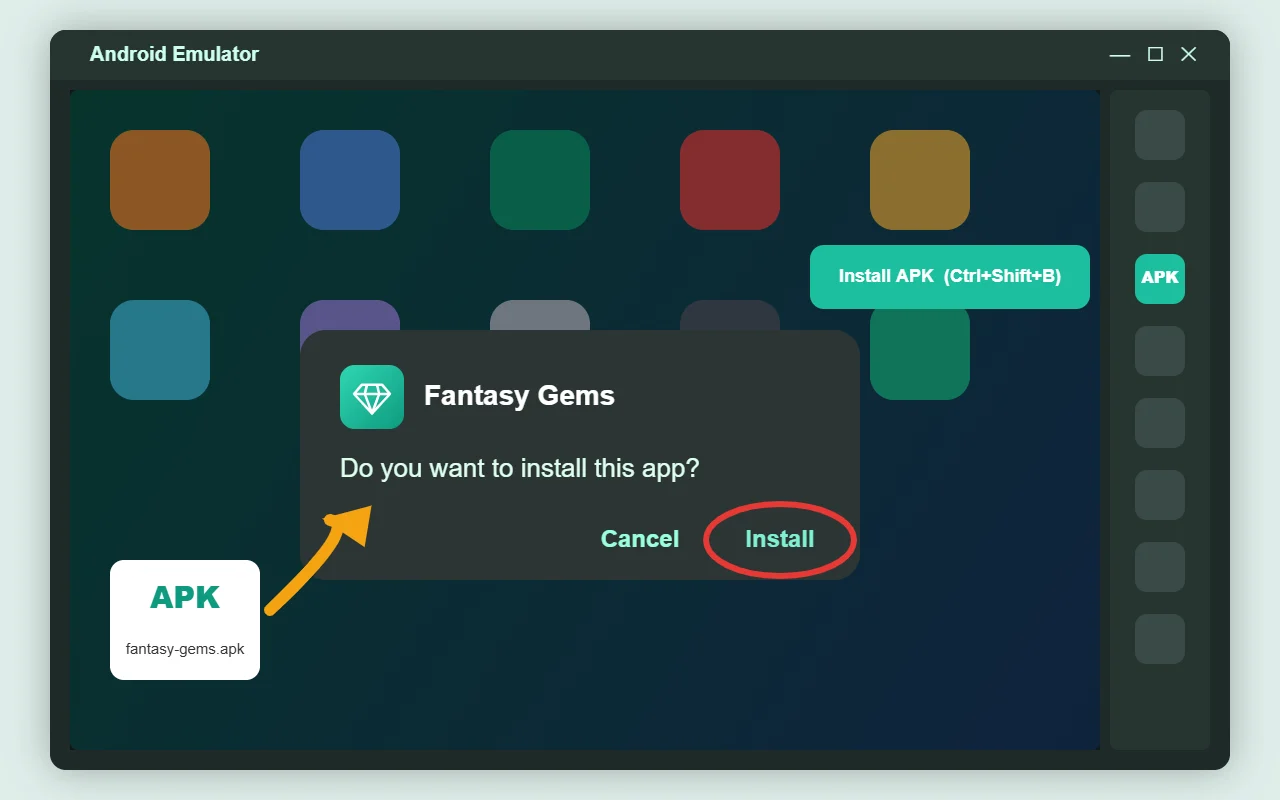
Before you drag the file into the emulator, upload it to VirusTotal to check it with many antivirus engines. Delete it if several engines flag it.
Best Emulators for Fantasy Gems for PC
BlueStacks is not the only option. Any trusted Android emulator can run the Fantasy Gems APK. Pick one based on your computer:
| Emulator | Best for | Notes |
|---|---|---|
| BlueStacks 5 | Most Windows PCs | Easy APK install and many performance settings |
| LDPlayer 9 | Older or low-end laptops | Often lighter on RAM and CPU |
| MuMu Player | Gaming laptops | Smooth with virtualization turned on |
| BlueStacks Air | Apple silicon Macs (M1 and later) | Runs Android apps on macOS |
Download any emulator only from its official website. Avoid “pre-loaded” emulator packs shared on YouTube or Telegram that come with games already installed.
Fantasy Gems for PC System Requirements
The web version only needs a modern browser and a stable connection. For the emulator method, these are the BlueStacks 5 requirements, as listed on the official BlueStacks support page:
| Requirement | Minimum | Recommended |
|---|---|---|
| Operating system | Windows 7 or later | Windows 10 or 11 |
| Processor | Intel or AMD | Multi-core Intel or AMD |
| RAM | 4 GB | 8 GB or more |
| Storage | 5 GB free space | SSD drive |
| Graphics | Updated graphics drivers | Intel, NVIDIA or AMD GPU with the latest drivers |
| Other | Administrator rights | Virtualization (VT) on and broadband internet |
Turn On Virtualization for a Faster Fantasy Gems for PC
If BlueStacks feels slow, virtualization is usually switched off. Turning it on can make Fantasy Gems for PC run much smoother:
- Restart your PC and open BIOS or UEFI. The key is usually F2, F10, Del or Esc during startup.
- Find Intel Virtualization Technology (VT-x) or AMD SVM Mode.
- Set it to Enabled, then save and exit.
- In Windows, open Task Manager → Performance → CPU and check that it says Virtualization: Enabled.
Best Browser for Fantasy Gems for PC
Any modern browser can open the web version, but some work better than others for fast games and payments:
| Browser | How well it works |
|---|---|
| Google Chrome | Best overall. Smooth games and an easy “Install page as app” option. |
| Microsoft Edge | Very good on Windows 10 and 11, with an “Install this site as an app” option. |
| Mozilla Firefox | Works well, but has no built-in install-as-app option on Windows. |
| Brave or Opera | Work, but ad and tracker blockers can stop some buttons. Turn shields off for the site if something breaks. |
Whichever browser you choose, keep it updated. Browser updates fix security holes that fake websites try to use, and they also make games load faster on older laptops.
Fantasy Gems for PC Login, Register, Deposit and Withdraw
Your account works the same on a computer as on a phone. Both PC methods use the same +92 login, the same wallet and the same history.
| Task | How it works on PC |
|---|---|
| Register | Click Register, enter your +92 number, set a password, add an invitation code only if you trust it, and verify with the OTP if asked |
| Login | Enter your +92 number and password, then click Login |
| Deposit | Wallet → Deposit → JazzCash, Easypaisa, bank transfer or USDT → pay → enter the TID if asked |
| Withdraw | Wallet → Withdraw → choose your linked account → enter the amount → submit |
| OTP | The OTP comes to your phone by SMS, so keep it nearby |
| Proof | Press Windows + Shift + S to save a screenshot of every TID |
Full steps and fixes: Fantasy Gems register, Fantasy Gems login, deposit guide and withdraw guide.
Fantasy Gems on Mac and MacBook
Mac users have the same two choices. The simplest is the web version in Safari or Chrome: open the site, log in, and add it to the Dock if you like. On Apple silicon Macs (M1 and later), BlueStacks Air can run the Android APK on macOS.
Apple silicon Macs can also run some iPhone apps, but that does not help here, because there is no Fantasy Gems iPhone app. Our Fantasy Gems iOS guide explains how iPhone and iPad users can still play through Safari.
Web Version vs Emulator: Which Fantasy Gems for PC Method Is Better?
| Feature | Web version | Emulator (BlueStacks) |
|---|---|---|
| Setup time | Under a minute | 10–20 minutes |
| Storage | None | 5 GB or more |
| Performance | Depends on your browser | Smooth with virtualization on |
| Updates | Automatic | Install each new APK |
| Security risk | Lowest | Depends on where the APK came from |
| Best for | Quick play and low-end PCs | A full app-like experience |
For most people, the web version is the better Fantasy Gems for PC method. Choose the emulator only if a feature you need is missing in the browser.
Tips for a Better Fantasy Gems for PC Experience
- Use a wired or strong Wi-Fi connection. Fast games like colour prediction need a stable connection, or bets may fail to register.
- Close heavy programs. Browsers with many tabs and video apps slow down both the web version and the emulator.
- Give BlueStacks more resources. In Settings → Performance, set CPU to 4 cores and memory to 4 GB if your PC has 8 GB RAM.
- Keep graphics drivers updated. Outdated drivers are a common reason for black screens in emulators.
- Lock your computer when away. Press Windows + L so nobody else can open your account.
Fantasy Gems for PC Problems and Solutions
| Problem | Likely cause | Solution |
|---|---|---|
| BlueStacks is slow or lagging | Virtualization off or low RAM | Turn on VT, close other programs and give BlueStacks more CPU and RAM |
| “App not installed” in the emulator | Old version or a corrupt APK | Uninstall the old app, download the APK again and reinstall |
| APK will not open | File is .xapk or .zip, not .apk | Use a proper .apk file with the Install APK button |
| BlueStacks will not start | Hyper-V conflict or old drivers | Install the BlueStacks Hyper-V version or update your drivers |
| OTP not received | SMS delay or wrong number | Wait 60 seconds, check the +92 number and request it again |
| Antivirus blocks the file | The file may be unsafe | Do not override the warning. Scan it on VirusTotal and get a fresh copy |
| Website looks too big or small | Browser zoom level | Press Ctrl and + or Ctrl and − to adjust, or Ctrl + 0 to reset |
Is an Emulator Safe for Fantasy Gems for PC?
Well-known emulators such as BlueStacks, LDPlayer and MuMu Player are legal programs used by millions of gamers. The emulator itself is not the risk. The risk comes from two places: fake emulator downloads and fake APK files.
- Download the emulator only from its official website, never from a “full version” or “crack” page.
- Install the Fantasy Gems APK only after scanning it, and avoid “MOD,” “VIP” or “unlimited coins” versions.
- You do not need to sign in with your main Google account to install an APK. Skip the Google sign-in if you prefer.
- Do not give the app permissions it does not need, such as contacts or SMS access.
If you follow these rules, Fantasy Gems for PC through an emulator is about as safe as the Android APK on a phone. The web version is still the lowest-risk option.
Fantasy Gems for PC on a Chromebook
Chromebooks can run Android apps from the Play Store, but Fantasy Gems is not on the Play Store. Installing an APK on a Chromebook needs developer mode or extra setup, which weakens the device’s security. For a Chromebook, simply open the web version in Chrome, log in, and pin the tab or install the site as an app from the Chrome menu.
How to Remove Fantasy Gems from Your PC
Removing Fantasy Gems for PC takes less than a minute, whichever method you used:
- Web version: log out, then delete the desktop shortcut or uninstall the site app from Chrome or Edge.
- Clear saved data: in your browser settings, delete cookies and site data for the Fantasy Gems website.
- Emulator: in BlueStacks, press and hold the Fantasy Gems icon and choose Uninstall.
- Remove the emulator (optional): Windows Settings → Apps → Installed apps → BlueStacks → Uninstall.
Withdraw any remaining balance before you remove anything, because deleting the app or shortcut does not close your account.
Fantasy Game for PC and Fantasy Gems Laptop: Same Thing?
Yes. Fantasy Game for PC, Fantasy Gems laptop, Fantasy Gems PC download, Fantasy Gems for Windows and “Fantastic game for PC” all refer to the same two methods on this page. There is no separate desktop app behind any of these names, so ignore pages that claim otherwise. Learn more in our full Fantasy Gems overview.
Before You Use Fantasy Gems for PC for Real Money
Fantasy Gems has no verified developer or licence, it is not reviewed by Google Play or Microsoft, and online betting is not permitted in Pakistan. Read is Fantasy Gems real or fake and the legal status in Pakistan before you deposit anything.
- Never save your password in a shared or office computer browser.
- Never share your OTP, password or JazzCash PIN with anyone.
- Do not install “prediction hack” or “auto bet” software on your PC. Our Fantasy Gems hack guide explains why they are scams.
- Keep screenshots of every deposit and withdrawal.
- Set a spending limit and never deposit money you cannot afford to lose.
Fantasy Gems for PC FAQs
Is there an official Fantasy Gems for PC app?
No. There is no official Windows or Mac app and no .exe file. You can use the web version in a browser or the Android APK in an emulator.
How do I play Fantasy Gems on my laptop?
Open the Fantasy Gems website in Chrome, Edge or Firefox and log in with your +92 mobile number and password. No download is needed.
Can I install the Fantasy Gems APK on Windows?
Not directly. Windows cannot open APK files on its own, so install an Android emulator such as BlueStacks and add the APK inside it.
Which emulator is best for Fantasy Gems for PC?
BlueStacks 5 works on most Windows PCs. LDPlayer is often lighter on older laptops, and BlueStacks Air works on Apple silicon Macs.
Does Fantasy Gems work on Windows 11?
Yes. Use the web version in any browser or run the APK in an emulator. The Windows Subsystem for Android is no longer supported, so do not rely on it.
Can I use Fantasy Gems on a Mac?
Yes. Open the web version in Safari or Chrome, or use BlueStacks Air on an Apple silicon Mac to run the APK.
Can I play Fantasy Gems on a Chromebook?
Yes, through the web version in Chrome. The APK is not on the Play Store, and sideloading it needs developer mode, so the browser is the better choice.
Can I use the same account on PC and mobile?
Yes. Log in with the same +92 number and password, and your wallet and history stay the same on every device.
Is Fantasy Gems for PC safe?
The web version is the safest method because nothing is installed. The platform itself has no verified licence, so real-money use is risky.
Do I need to update Fantasy Gems on PC?
The web version updates automatically. In an emulator, install the newest APK over the old one when an update is released.